Best Iptv Uk
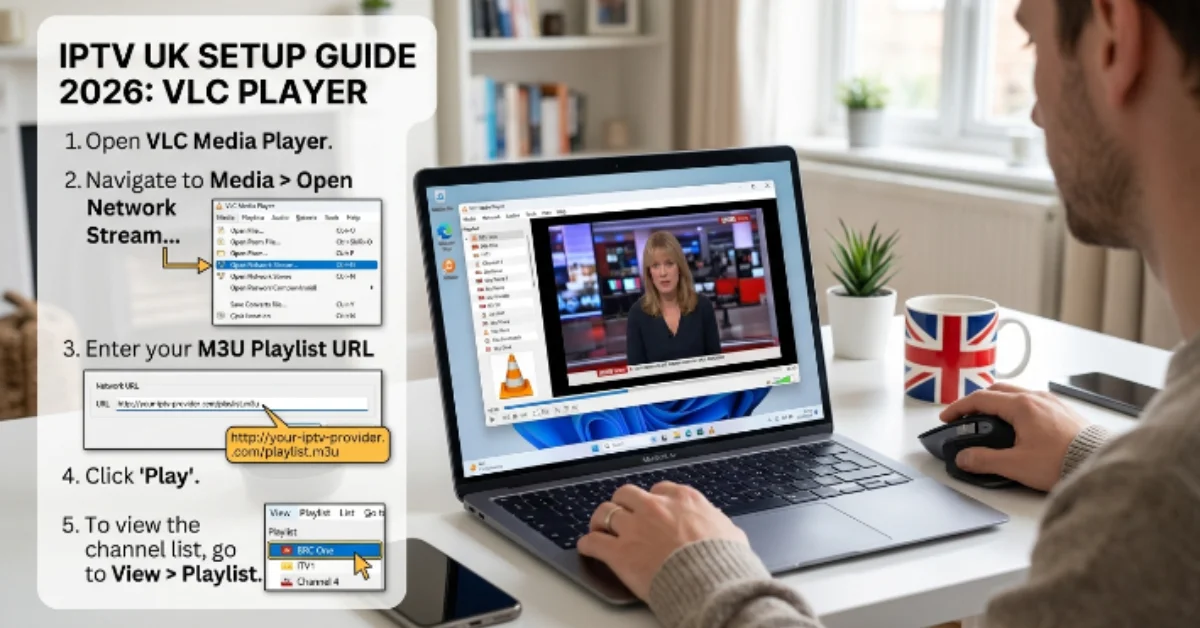
How to Add IPTV Channels to VLC Media Player (IPTV UK Beginner Guide)
If you are exploring IPTV UK solutions and want a simple, direct way to stream live TV on your computer or mobile device, VLC Media Player is one of the easiest tools to get started with. Developed by VideoLAN, VLC is completely free, open-source, and available across almost every major operating system.
This beginner-friendly guide walks you through everything step-by-step, from understanding the core mechanics of IPTV technology to adding your playlist in VLC, optimizing playback, and troubleshooting common streaming glitches.
What is IPTV and How Does It Work?
IPTV stands for Internet Protocol Television. Instead of receiving television signals through traditional satellite dishes, coaxial cable lines, or over-the-air antennas, IPTV transmits television programming directly over your standard internet connection using internet protocol suites.
When you select a stream on an IPTV service, the video data is broken down into small data packets, routed across high-speed broadband, and rendered in real time on your streaming player or computer. This method allows for on-demand flexibility, vastly expanded channel lineups, and access to ultra-high-definition video feeds.
Why Use VLC Media Player for IPTV Streaming?
While dedicated IPTV client applications like IPTV Smarters Pro or TiviMate exist, VLC Media Player remains one of the top choices for beginners and power users alike due to several distinct advantages:
Universal Compatibility: VLC runs seamlessly on Windows, macOS, Linux, Android, and iOS.
Zero Cost & No Ads: VLC is completely free with no hidden paywalls, banner advertisements, or subscription charges.
Vast Codec Library: It natively supports almost every audio and video compression format, preventing video decoding failures.
Lightweight Performance: VLC uses minimal system resources, making it ideal for older laptops and lower-spec desktop computers.
Instant Testing Tool: It serves as the ultimate diagnostic tool to quickly test whether an IPTV M3U URL or stream feed is active before configuring complex Smart TV apps.
Need Help Setting Up Your IPTV Player?
Our easy-to-follow guides walk you through the installation process so you can start streaming quickly.
Read the Setup Guide →best-iptvuk.com
Step-by-Step Guide: How to Add IPTV Channels to VLC
Setting up live TV inside VLC Media Player takes less than two minutes. Follow these detailed steps to stream your M3U playlist:
Step 1: Download and Install VLC
If you do not already have VLC installed, visit the official VideoLAN website, download the latest stable installer for your operating system, and follow the standard installation prompts.
Step 2: Obtain Your IPTV M3U Link
After signing up for a service or activating a trial, your IPTV provider will supply you with a dedicated M3U URL.
Step 3: Open Network Stream in VLC
Launch the VLC Media Player application on your computer.Ctrl + N on Windows / Cmd + N on Mac).
Need Help Activating Your IPTV App?
Follow our detailed activation guides to configure your IPTV player quickly and correctly.
Read the Activation Guide →best-iptvuk.com
Step 4: Paste Your M3U Playlist URL
In the Network tab window that opens, make sure the network protocol field is selected. Carefully copy your full M3U playlist URL from your email or provider account dashboard, paste it into the Please enter a network URL field, and double-check for any accidental spaces.
Step 5: Start Streaming Live TV
Click the Play button at the bottom of the window. VLC will take a few seconds to parse the playlist data, fetch the channel indices, and automatically begin playing the first live channel in the list.
How to Toggle and Navigate the Channel Playlist in VLC
When you first load an M3U link, VLC will only display the video feed of one active channel. To view and switch between all available channels in your package:
Click on the View menu in the top navigation bar.
Select Playlist (or press
Ctrl + Lon Windows /Cmd + Lon Mac).You will see a complete text list of every live channel, organized by category or region as defined by your provider.
Double-click on any channel name in the list to switch to that stream instantly.
Use the search bar at the top of the Playlist window to quickly locate specific sports channels, local UK networks, or PPV event feeds.
Advanced VLC Settings for Smoother IPTV Playback
If you experience periodic buffering, audio delays, or stream looping while watching IPTV on VLC, tweaking a few built-in player parameters will optimize performance:
1. Increase Network Caching
By default, VLC buffers a small amount of network data before playing a stream. Increasing this buffer prevents stuttering during brief internet speed drops:
Go to Tools > Preferences (or
Ctrl + P).At the bottom left under Show settings, select All.
Navigate to Input / Codecs in the left sidebar.
Scroll down to the Advanced section on the right and locate Network caching (ms).
Change the default value (usually 300 ms) to 1000 ms or 2000 ms for a larger safety buffer.
Click Save and restart VLC.
2. Disable Loop Playback
Sometimes, if an IPTV channel stream temporarily loses connection, VLC will automatically skip to the next channel in your playlist. To prevent this jumping behavior:
Locate the Loop / Repeat button at the bottom playback control bar near the Play/Pause controls.
Click it until the loop icon is toggled off (grayed out) so VLC stays locked on your current channel even if a temporary drop occurs.
3. Enable Hardware-Accelerated Decoding
Ensure your system’s graphics processor handles video decoding to keep CPU utilization low during 4K or 60fps streams:
Go to Tools > Preferences > Input / Codecs.
Find the Hardware-accelerated decoding setting.
Change it from Disable to Automatic (or Direct3D11 Video Acceleration on Windows).
Save your changes.
The Value of Testing via an IPTV Free Trial
If you are new to internet-based television streaming, jumping straight into a long-term subscription can be risky. Server stability, channel switching speed, and true broadcast resolution vary significantly between different IPTV UK providers.
Taking advantage of an IPTV free trial (typically lasting 24 to 48 hours) allows you to test:
Peak Hour Stability: Verify if sports channels hold up during high-demand weekend matches without freezing.
Stream Quality: Check whether advertised Full HD and 4K streams deliver true high-bitrate output.
VLC Compatibility: Ensure your provider's M3U link parses properly without returning playlist syntax errors inside VLC.
Want to Try Our Service Before Subscribing?
Experience the streaming quality and device compatibility by requesting a free trial before choosing a subscription.
Start Your Free Trial →best-iptvuk.com
Comparing IPTV with Traditional Cable Television
Upgrading to an IPTV UK setup offers several practical benefits over traditional cable or satellite installations:
Hardware Independence: Cable TV requires proprietary set-top boxes and satellite dish installations, whereas IPTV runs on your existing laptop, PC, Smart TV, or Firestick.
Global Channel Access: Cable subscriptions lock you into fixed regional broadcast bundles, while IPTV provides access to UK channels alongside international sports and news networks.
Cost Efficiency: Premium cable packages with added sports and movie tiers can easily exceed £80 to £120 per month, whereas IPTV subscriptions offer flexible monthly or annual tiers at a fraction of that cost.
Mobility: Cable TV is tied to your living room wall outlet, whereas an IPTV playlist on VLC can travel with you anywhere in the world on a laptop or smartphone.
Troubleshooting Common VLC IPTV Errors
If your streams fail to open or run into issues while using VLC, consult these quick solutions:
Error: "VLC is unable to open the M3U URL": Double-check your URL for missing characters or extra spaces. Ensure your subscription or free trial account has not expired.
Video Plays for 5 Seconds Then Stops: This occurs when VLC hits a stream break and jumps. Disable the loop/repeat toggle in VLC's bottom toolbar, or increase network caching to 2000 ms.
Audio Works But Screen Is Black: Navigate to Tools > Preferences > Video and change the Output setting from Automatic to Direct3D11 or OpenGL, then restart the player.
Frequent Buffering: Ensure your device is connected to a 5 GHz Wi-Fi band or connected via an Ethernet cable. If your local internet provider throttles streaming traffic during peak hours, turning on a secure VPN will restore standard speeds.
Looking for Helpful FAQs?
Find answers to common IPTV questions, installation tips, and streaming advice in one place.
View FAQs →best-iptvuk.com
Final Thoughts
VLC Media Player is an ideal entry point for anyone wanting to explore live TV streaming without purchasing dedicated hardware or complex software. By obtaining an M3U link from a reputable provider, opening a network stream, and configuring a few basic caching settings, you can transform your Mac, PC, or mobile device into a versatile streaming center in just a few clicks.
Best Iptv Uk
Top Features to Look for in a Reliable IPTV UK Service
As British households continue to re-evaluate their monthly entertainment expenses, internet-delivered streaming solutions have moved from a tech-savvy alternative straight into the mainstream. Instead of paying rigid, multi-room contracts for satellite dishes or cable installations, millions across the United Kingdom are turning to internet protocol television.
By streaming live broadcasts, pay-per-view events, and video-on-demand libraries directly over broadband connections, modern digital platforms offer an all-in-one entertainment setup.
New to IPTV?
Learn the basics of IPTV, how it works, and which devices are compatible before you begin streaming.
Learn More About IPTV:best-iptvuk.com
Why IPTV Demand Keeps Growing Across the UK
The shift away from traditional broadcast television across England, Scotland, Wales, and Northern Ireland is driven by clear structural advantages:
Escalating Cable & Satellite Costs: Conventional television packages with added sports and movie tiers frequently exceed £80 to £120 per month.
High-Speed Fiber Infrastructure: The widespread availability of full-fiber broadband across the UK provides the steady download speeds necessary for uncompressed live video streams.
Centralized Content Access: Rather than juggling six different paid apps, users can access domestic live television, global sports networks, and on-demand media within a single interface.
No Contracts or Hardware Rentals: Flexible monthly or yearly options eliminate multi-year binding agreements and engineer visit fees.
1. Anti-Freeze Server Infrastructure & High Uptime
Server performance remains the absolute cornerstone of any reliable streaming service. A service carrying thousands of channels is useless if video feeds drop during critical moments, such as peak evening viewing hours or a major Premier League derby.
Top-tier providers utilize multi-region Content Delivery Networks (CDNs) paired with load-balancing load managers. This structure automatically routes your data connection through optimal servers, keeping stream playback buffer-free even during high-traffic global broadcasts. When evaluating a provider, prioritize verified uptime performance and server stability over raw channel totals.
2. High-Bitrate HD, Full HD, and 4K Ultra HD Feeds
Visual quality directly dictates your viewing experience, particularly on large living room displays.
Broadband Speed Guidelines for Optimal Playback:
Standard Definition (SD): Requires a minimum stable connection of 5 Mbps.
High Definition (720p/1080p @ 30fps): Requires a stable connection of 10 to 15 Mbps.
Full HD (1080p @ 60fps Sports): Requires a stable connection of 15 to 20 Mbps with hardware acceleration enabled.
4K Ultra HD / HDR: Requires a dedicated broadband speed of 25 to 50 Mbps over a wired Ethernet cable or 5 GHz Wi-Fi band.
Ready to Start Streaming?
3. Comprehensive UK Channel & Regional Programming
A true British-focused entertainment setup must go beyond basic national feeds to deliver complete domestic regional coverage.
Essential Domestic Categories to Verify:
Terrestrial & Free-to-Air Networks: Complete access to regional BBC, ITV, Channel 4, and Channel 5 variations.
Premium Sports Networks: Uninterrupted broadcasts of Sky Sports, TNT Sports, Premier Sports, and dedicated racing channels.
Entertainment & Documentary Hubs: Dedicated feeds for sky Atlantic, Sky Cinema, Discovery, and national news networks.
Video-On-Demand (VOD) Library: Frequently updated movies, complete box sets, and British series with full multi-language subtitle support.
4. Cross-Platform Device Support & App Integration
Flexibility is a primary driver behind internet television adoption.
Supported Hardware & Software Ecosystems:
Amazon Firestick & Fire TV: Highly popular in the UK due to affordable 4K hardware decoding capabilities.
Smart TVs: Native app integration on Samsung Tizen, LG webOS, and Android/Google TV systems.
Mobile & Handheld Devices: Dedicated player apps for iOS smartphones, iPads, and Android mobile devices.
Third-Party IPTV Player Compatibility: Full support for industry-standard player applications like TiviMate, IPTV Smarters Pro, XCIPTV, and IBO Player using Xtream Codes API or M3U playlist configurations.
5. Intuitive User Interface, EPG, & Catch-Up Features
Navigating thousands of live channels requires clean organization. A confusing or unresponsive user interface quickly ruins the viewing experience.
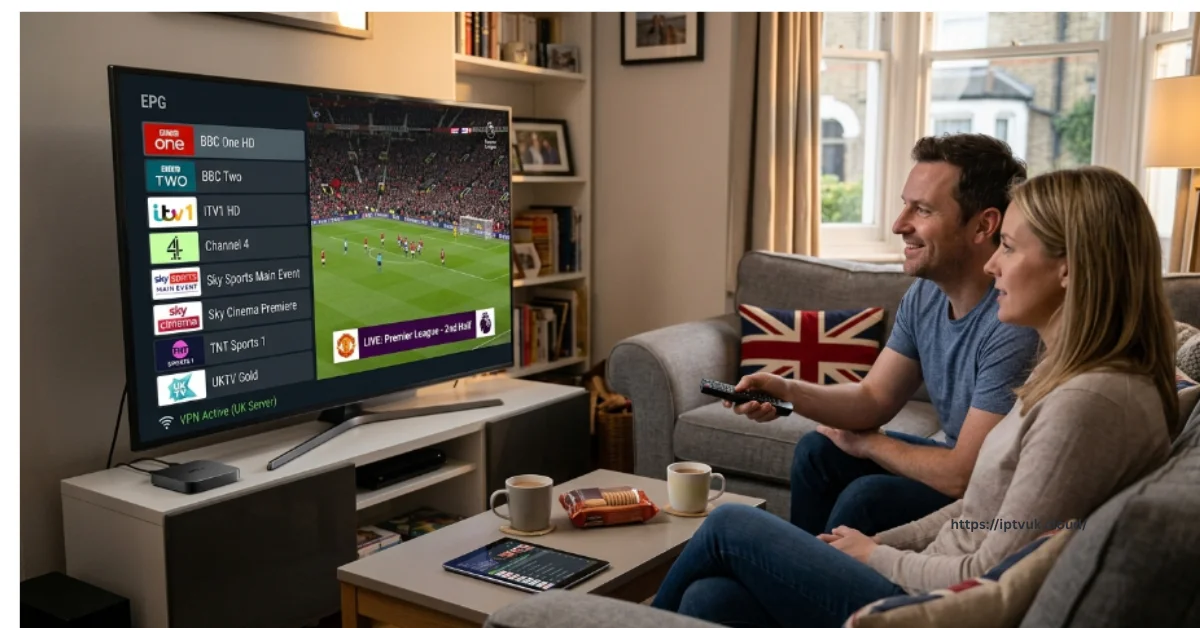
Accurate Electronic Programme Guide (EPG): An integrated TV guide displaying current and upcoming programming schedules across all channels with correct local time zones.
Catch-Up TV Functionality: The ability to replay previously aired shows or live matches directly from the program guide within a 3 to 7-day window.
Favorites & Category Management: Quick-sorting tools that allow you to group primary sports, news, and entertainment feeds into customized lists.
6. Testing Performance with an IPTV UK Free Trial
Before committing to a long-term plan, testing real-world server performance during peak hours is a crucial step.
Step-by-Step Trial Setup Workflow:
7. Understanding Subscription Models & Pricing Balance
Finding the right balance between price and long-term service quality is vital. While extremely cheap plans can be tempting, overly low prices often reflect overcrowded servers and inadequate customer support.
Monthly Subscription Plans: Ideal for short-term testing or temporary viewing. Offers flexibility without long-term commitments.
3 to 6 Month Plans: A balanced middle-tier option that provides subscription discounts while maintaining flexibility.
12 Month Annual Plans: Delivers the lowest per-month cost for verified, reliable providers.
Multi-Connection Plans: Enables simultaneous streaming across multiple screens in the same household, preventing connection conflicts when family members watch different programs.
Need Help Choosing the Right IPTV Plan?
Compare our subscription options and find the perfect plan based on your viewing preferences, budget, and favourite content.
View Our IPTV Plans →best-iptvuk.com
8. Customer Support & Privacy Protections
Even high-performance infrastructure occasionally encounters network or configuration hurdles.
24/7 Technical Support: Access assistance via live chat, WhatsApp, or ticketing systems to resolve billing or playlist issues quickly.
VPN Compatibility: Top providers maintain network configurations that operate smoothly alongside Virtual Private Networks (VPNs), protecting user data privacy while streaming.
Frequently Asked Questions
What is the recommended internet speed for IPTV streaming in the UK?
For standard HD channels, a minimum speed of 10 to 15 Mbps is recommended.
How do I stop stream buffering on my Firestick?
To eliminate buffering, connect your device via an Ethernet cable rather than Wi-Fi, change your player's internal video decoder to Hardware (HW Acceleration), clear application cache, and restart your home router to refresh DNS settings.
Can I use my IPTV subscription on multiple devices at once?
Simultaneous streaming depends on your specific subscription plan.
Why is testing an IPTV free trial important before subscribing?
A trial allows you to verify server performance during peak hours, inspect EPG accuracy, test device compatibility, and confirm channel stability before making a financial commitment.
Simple, Transparent Pricing
Choose the plan that works best for you. All plans include our 30-Day Money-Back Guarantee.
Limited Time Flash Sale!
Prices will return to normal after the timer ends.
Monthly
Perfect for trying out our service
-
28,000+ Live TV Channels
-
Full HD & 4K Quality
-
7-Day Catch Up
-
VOD Library (Movies & Series)
-
Use on 1 Device
-
24/7 Support via WhatsApp
3 Months
Great value for short term
-
28,000+ Live TV Channels
-
Full HD & 4K Quality
-
7-Day Catch Up
-
VOD Library (Movies & Series)
-
Use on 2 Devices Simultaneously
-
24/7 Support via WhatsApp
-
Save over 20% vs Monthly
Annual
Best value for loyal customers
12 Months + 2 Months FREE
-
28,000+ Live TV Channels
-
Full HD & 4K Quality
-
7-Day Catch Up & Recording
-
Premium VOD Library (Updated Daily)
-
Use on 3 Devices Simultaneously
-
VIP 24/7 Support
-
Save over 60% vs Monthly
-
Free Setup Assistance
Quarterly
Popular choice for commitment
-
28,000+ Live TV Channels
-
Full HD & 4K Quality
-
7-Day Catch Up & Recording
-
Extensive VOD Library
-
Use on 2 Devices Simultaneously
-
Priority 24/7 Support
-
Early access to new features
Secure Payment Options
We accept various secure payment methods for your convenience.
Ready for a Longer Test Drive?
Experience the full power of lightsteelblue-mallard-181895.hostingersite.com IPTV with our exclusive 24-hour free trial. Access all 28,000+ channels, VOD, and premium features with no obligation. It's the perfect way to see why we're the UK's favourite IPTV provider!
Contact Us
Have questions or need assistance? We're here to help!
Get in Touch
Email Us
contact@best-iptvuk.com
Available 24/7
Call Us
+447404860675
Available 24/7
Live Chat
Available on our website
Response time: Under 5 minutes
Our Hours
Customer Support: 24/7
Sales Department: Mon-Fri, 9am-6pm GMT
Technical Support: 24/7
